Newly admitted students and applicants will need to reset their password the first time they log onto Navigator. Your SSU ID number is located on your admitted student email and/or letter that was mailed home or you can use our help instructions below.
- Reset your SSU password - Salem State identifies a student username with the letter "S" followed by a student identification number (ex: S1234567, also known as your student ID).
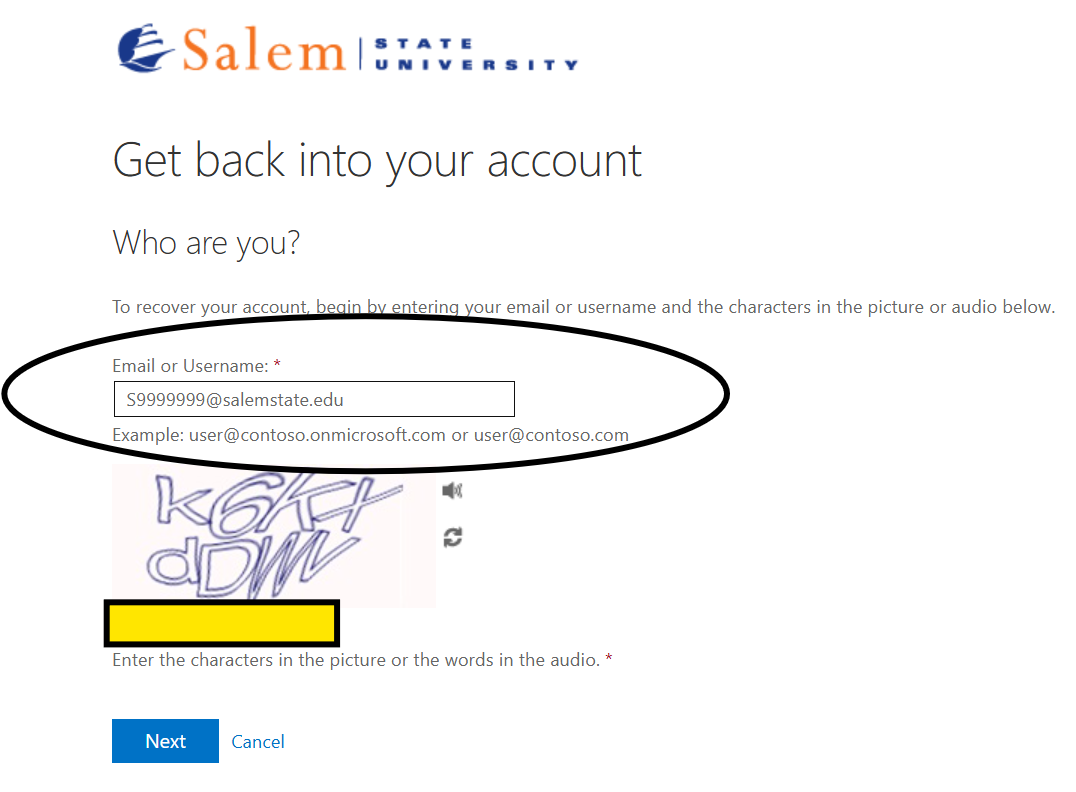
- Enter username (circled below)
- Complete the reCAPTCHA box (highlighted below)
- Select "Next"
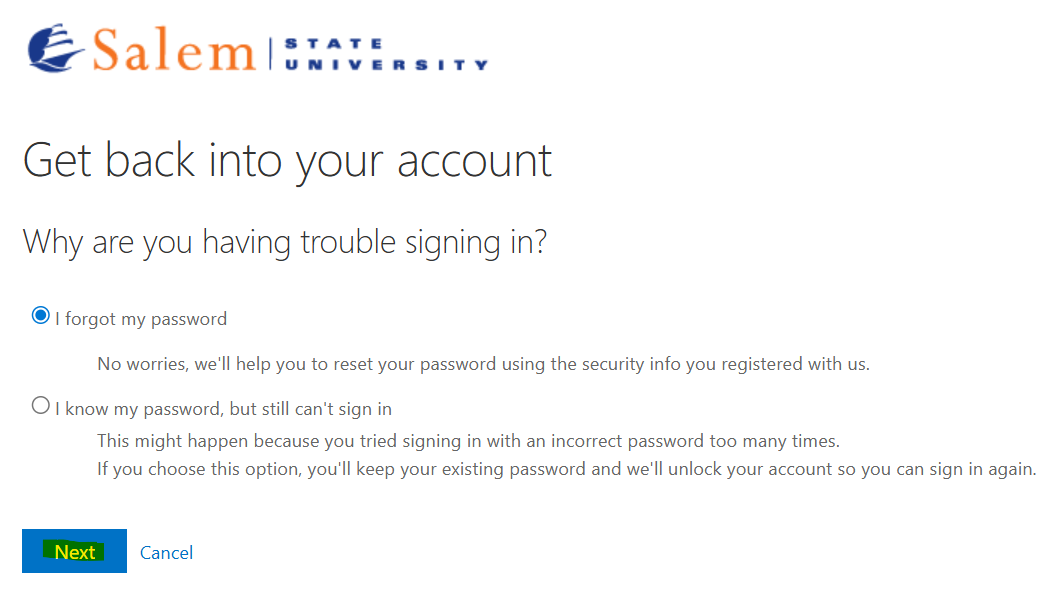
- On the next screen, choose "I forgot my password"
- Select "Next"
How do I find my student ID?
- Go to the "Account Help" tile.
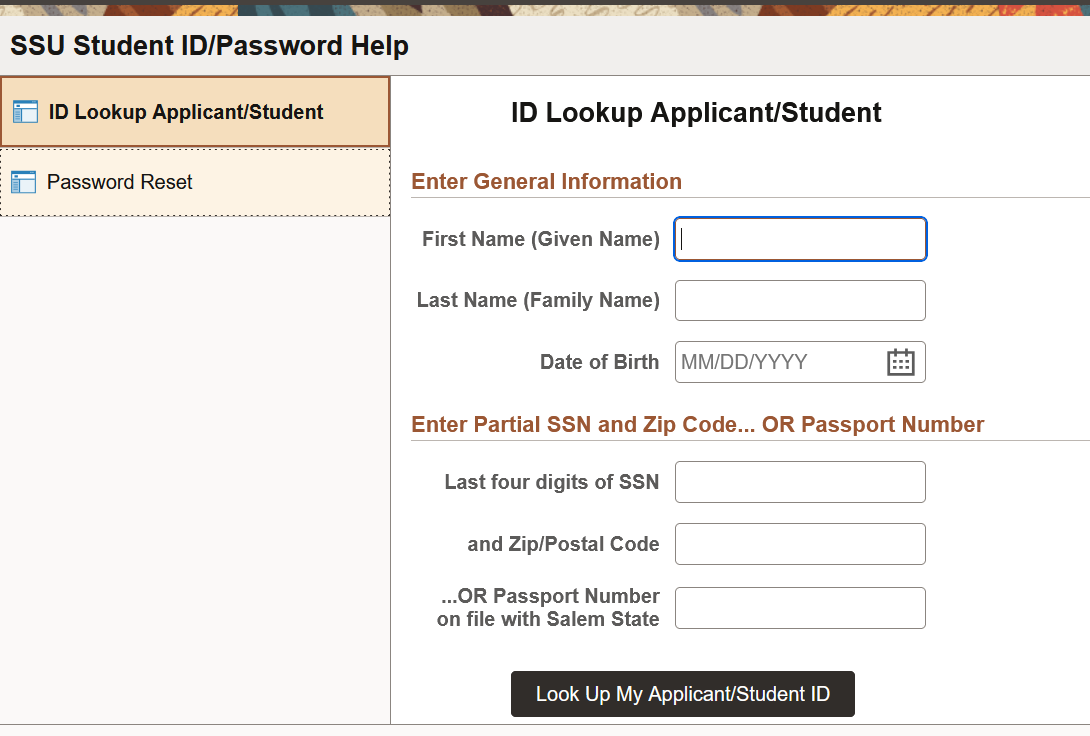
- Fill in all required information (if you are an international student, and do not have a Social Security number, select "Passport Number")
- Select "I’m not a robot". You will see a series of images. Select the images, select "Verify", and if you are correct, you will get a GREEN checkmark to continue.
- Select "Look Up My Applicant/Student ID"
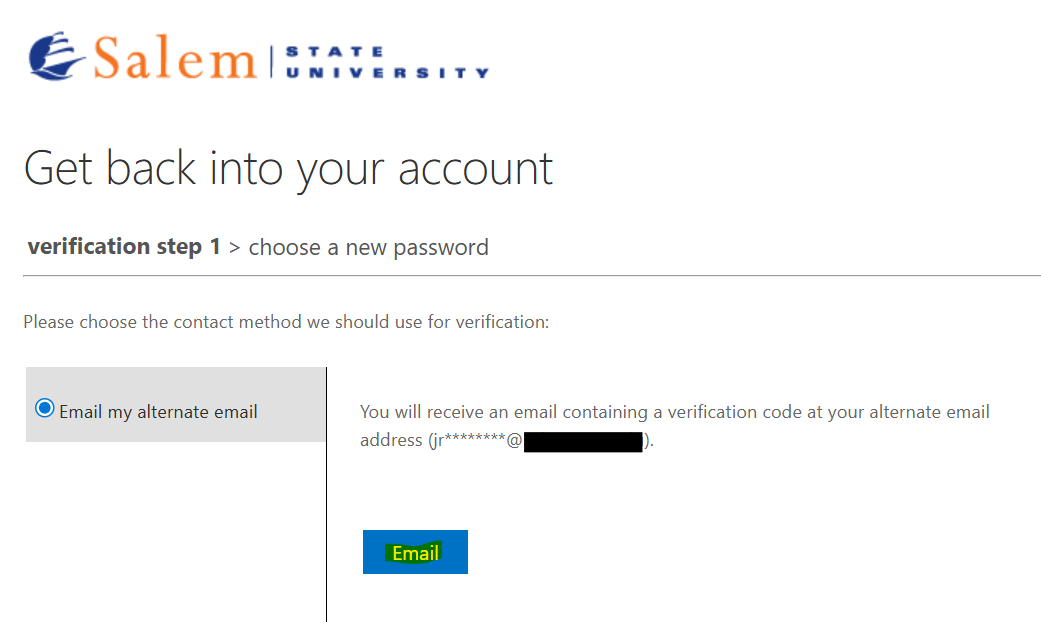
- Ensure your alternate email address is correct, then select "Email"
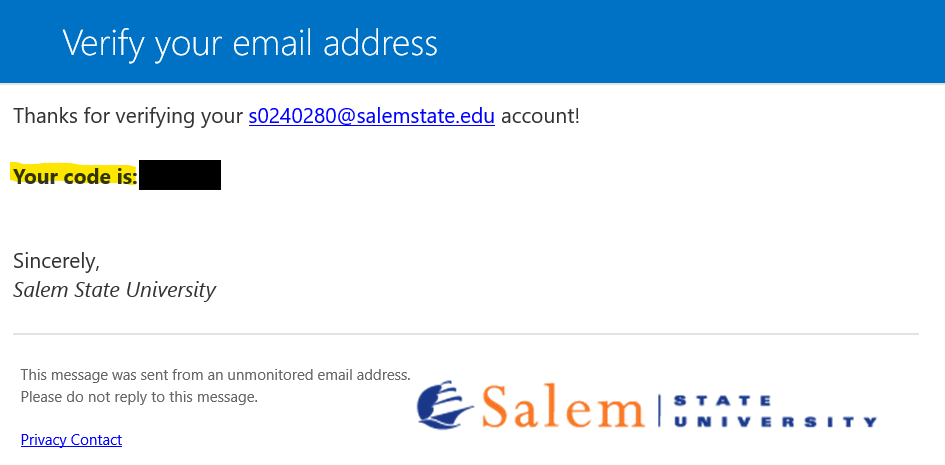
- Check your alternate email for the subject line "External: Salem State University account email verification code"
-
Copy the 6 digit code from the email
Not seeing the code in your email? You may need to check your promotions, spam or junk folders for the email.
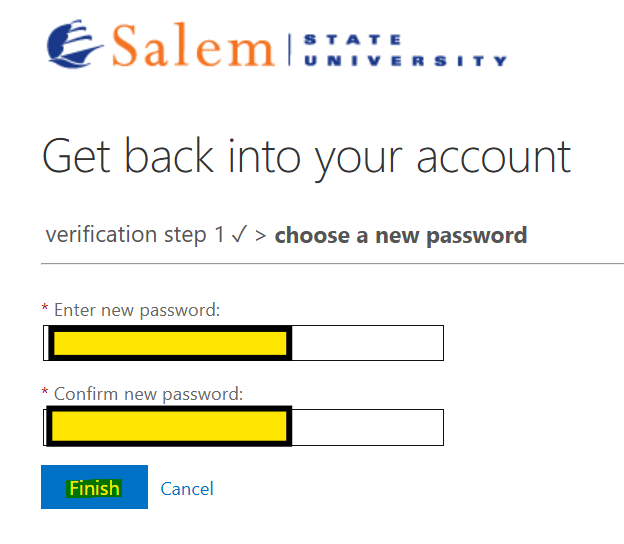
- Return to webpage tab where you requested the password and enter the security code provided via email
- Create a new secure password (review our password rules)
- Select "Finish"
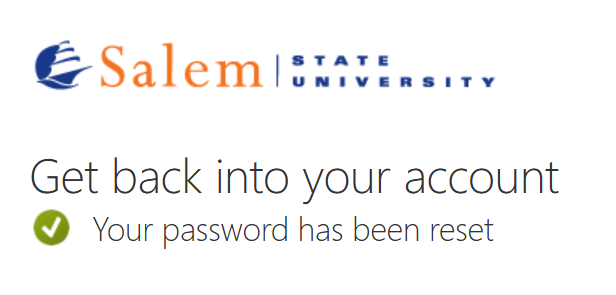
- Your password is now created and you can officially log into Navigator
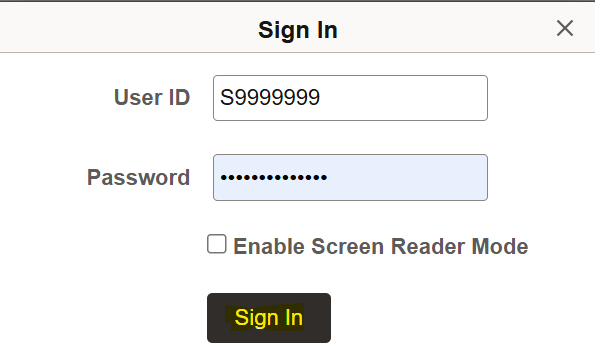
- You should be returned to the navigator login screen where you will enter your Salem State User ID. Salem State identifies a student username with the letter "S" followed by a student identification number (ex: S1234567, also known as your student ID).
- Enter the password you created on the prior screen
- Select "Sign In"
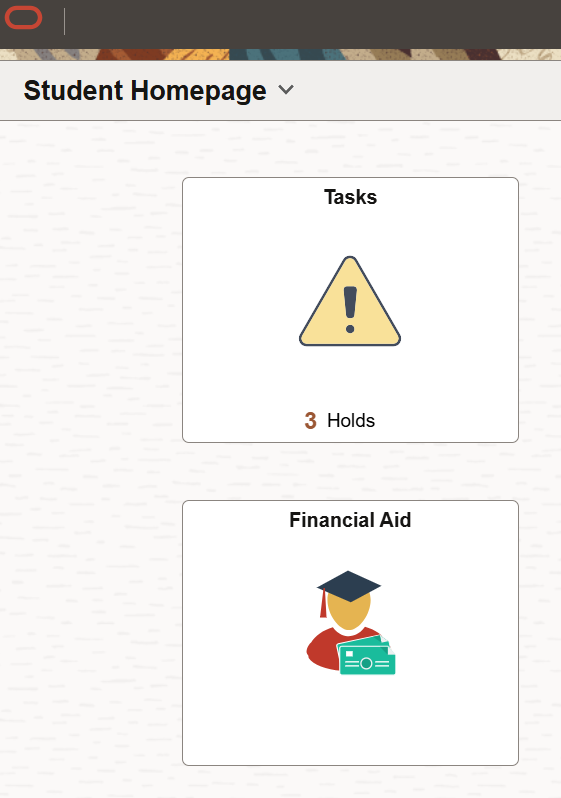
- Once you've signed in you will see multiple "tiles" including Application Status, Financial Aid and Tasks
- Application Status: Find out the status of your application
- Financial Aid: Review your Financial Aid package and/or additionally required items
- Tasks: Outstanding "To Do" items that must be completed so we can welcome you to campus